PDF Scanner App: Document Scan
SmartSoft AppsProductivity
4.241.00 Reviews
- Version
- 2.05
- Installs
- 500.00K
- Age Rating
- Everyone
Screenshots
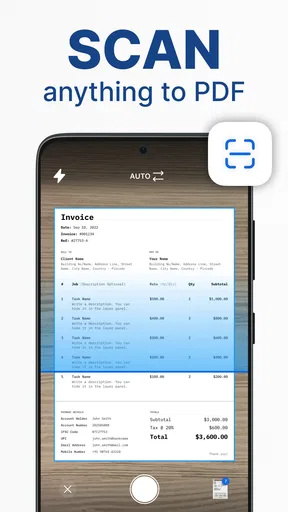
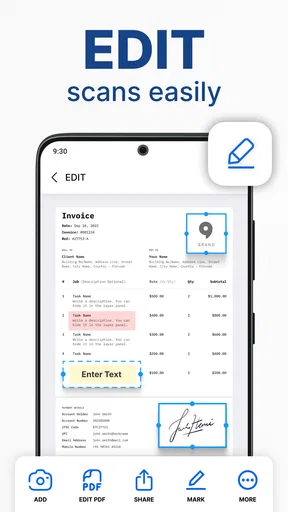
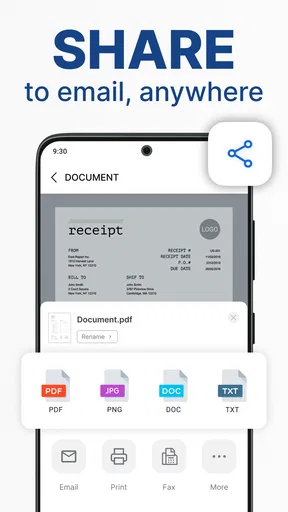
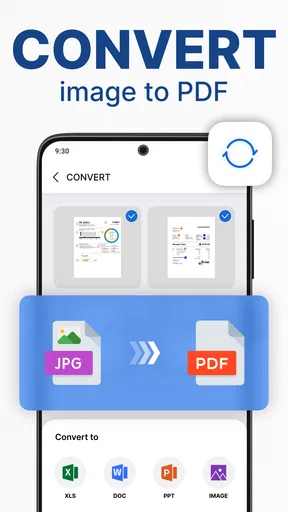
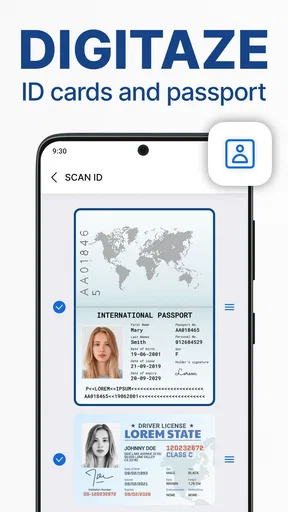
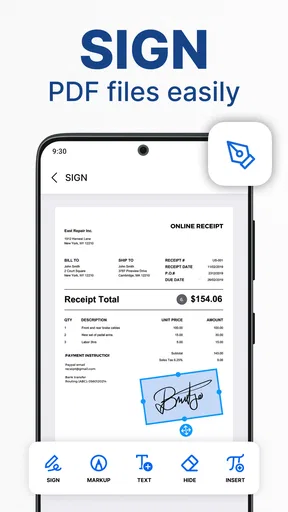
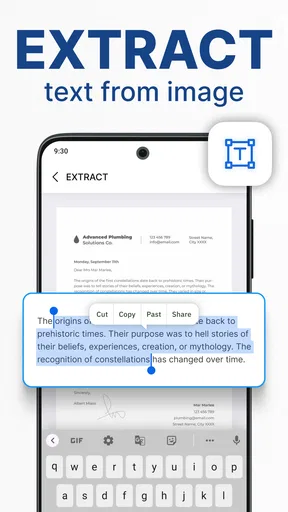
Our Review of PDF Scanner App: Document Scan
 Analysis by Appyee
I tried PDF Scanner App: Document Scan as a practical productivity tool rather than treating it like a simple camera replacement. Its main job is straightforward: capture paper documents and turn them into PDF or JPG files that are easier to store, send, and share. That focus makes it useful for everyday paperwork, especially when I need a digital copy quickly and do not want to sit at a computer with a separate scanner.
The app is made by SmartSoft Apps and is free to install, with optional in-app purchases ranging from $4.99 to $45.99 per item. It is rated for Everyone, works on Android 7.0 and later, and its current version is 2.05. I also found its position in the productivity category easy to understand: it is not trying to replace a full office suite. It is a focused document-capture tool for people who want a phone-based way to make shareable files.
How the app feels to use in different situations
When I use a phone scanner in different situations, the surroundings often matter as much as the app: a clear table and even light can make a routine capture far less fiddly. I also think about what happens after the scan, from naming a file so I can find it later to choosing a format that suits the person receiving it. Those small habits help show where a focused scanner earns a place—and where a broader tool may be more useful.
Readability and navigation
The most important accessibility question for a scanning app is whether I can move from opening it to creating a usable document without unnecessary confusion. In my experience, the narrow purpose helps. I am not navigating a crowded workspace filled with calendars, notes, cloud folders, and editing tools. The expected path is much more direct: capture a page, review the result, and prepare it as a PDF or JPG.
That simplicity matters for people who find complex productivity apps tiring. Someone scanning a school form, a receipt, or a signed page usually wants to complete one task and leave. A focused interface can reduce the amount of visual searching involved, particularly when the user is working under time pressure or has limited familiarity with document software.
I would still approach the app with realistic expectations. A simple purpose does not automatically make every control comfortable for every person. Small labels, close-together buttons, or unclear icons can make a short workflow harder for users with reduced vision or attention-related difficulties. I recommend taking a moment to check the preview before saving, rather than assuming the first capture is ready to send.
That preview step is more than a quality check. It gives me a chance to notice whether the page is tilted, partly cut off, too dark, or difficult to read. When a document contains a signature, account number, deadline, or handwritten note, a quick review prevents the common mistake of sharing a file that looks fine as a thumbnail but fails when opened at full size.
The app is also easier to understand when I think of it as a conversion tool instead of a filing system. I would not choose it as my main solution for organizing a large archive. For a few pages at a time, however, its focused workflow is less intimidating than opening a general office application and searching through several menus before reaching the camera.
Motor and sensory considerations
Scanning with a phone naturally involves physical actions: holding the device over a page, keeping it steady, and positioning the document inside the camera view. That can be inconvenient for someone with hand tremors, limited grip strength, or difficulty maintaining a fixed posture. The app cannot remove those physical demands, so the quality of the result depends partly on the environment and the user’s ability to stabilize the phone.
I get better results when I place the paper on a flat, contrasting surface and use both hands where possible. A table is more comfortable than trying to scan while standing. If holding the phone above the page is tiring, I would prepare the document first, clear the surrounding area, and capture one page at a time rather than attempting a long stack in a single session.
Lighting also has a direct effect on sensory usability. Glare, shadows, and low contrast can make printed text difficult to inspect after capture. I prefer indirect light and avoid placing the phone directly between a lamp and the page. This is a small adjustment, but it reduces the chance that I will need to repeat the scan or enlarge a poor image later.
For users who are sensitive to visual clutter, the app’s focused purpose is a potential advantage. There are fewer unrelated productivity elements competing for attention than in a broad office or cloud-storage application. On the other hand, anyone who relies heavily on a particular device’s accessibility settings should test the complete capture-and-export process on their own phone. The important question is not only whether the opening screen is readable, but whether previews, controls, and saved files remain manageable throughout the task.
One useful habit is to scan documents in batches based on how they will be used. I might capture all pages belonging to one form together, then check their order before sharing. This reduces repeated handling and makes the final file easier to understand. It is especially helpful when a user has limited stamina or needs to minimize the number of precise movements involved.
Situational access: where it earns its place
The strongest use case is a moment when a physical document arrives and I need a digital copy immediately. Imagine receiving a signed school permission form at the kitchen table. I can place it on a clear surface, capture it, inspect the page, and create a file that is easier to send than a loose sheet of paper. That workflow is more practical than waiting to reach a desktop scanner, and it avoids asking another person to type or photograph the information for me.
The same approach works for a rental document, an invoice, a travel receipt, or a page from a medical folder that I need to keep with other digital records. I would be careful with sensitive material, checking the recipient and file before sharing. The convenience of a fast scan should not encourage careless sending, particularly when a document includes personal or financial details.
It can also help in places where carrying a scanner is unrealistic. A student may need to preserve a printed reference page after class. A small business owner may want a copy of a supplier receipt before leaving a meeting. A family member helping with paperwork may need to turn several pages into a format that another person can open on a phone or computer.
The PDF and JPG choices are useful because they suit different situations. I prefer PDF when several pages belong together or when the file is intended to look like a formal document. JPG can be more convenient when I only need to send a single image or place the page into a message. Choosing the format before sharing is a small but important part of an accessible workflow: the recipient should not have to install a special tool just to view something I could have exported more appropriately.
For people who work across Android devices, the minimum operating-system requirement is relatively broad because the app supports Android 7.0 and later. That may make it a practical option on an older phone that cannot run some newer productivity tools. Performance will still depend on the device and camera, so I would test a representative page before relying on it for an important deadline.
The app’s popularity also gives me some confidence that it is not an obscure experiment. It has passed half a million installs and holds an average rating of 4.2 from roughly 3.3 thousand ratings. I treat those figures as useful context rather than proof that it will suit every person. A scanning workflow can feel excellent on one phone and awkward on another, especially when camera handling and screen readability differ.
What it does better than the usual alternatives
The usual alternatives are a physical scanner, a general camera app, or a broad office application that happens to include scanning. A physical scanner can produce consistent results and is usually better for large archives, but it takes space and is rarely available when I am away from a desk. The camera app is always close at hand, yet it leaves me with ordinary image files and makes document handling more manual.
A general office app may offer more features, such as editing, storage, and collaboration, but that extra range can slow down a one-page task. This app’s value is its narrower purpose. When I only need a document converted into a file I can share, a dedicated scanner is easier to justify than opening a full productivity suite.
There is a trade-off here. A specialist scanner is not automatically the best choice for someone who needs extensive text recognition, detailed annotation, advanced file management, or a long-term archive. If those functions are central to the job, I would compare it with a more comprehensive document platform instead of expecting this app to become one.
Another practical trade-off concerns cost. The app is free to install, which makes it easy to try without committing at the beginning. Optional purchases can reach $45.99 per item, so I would inspect the purchase screen carefully before selecting anything beyond the basic experience. A person who only scans occasionally may find the free starting point sufficient, while a frequent user should decide whether the paid options genuinely solve a recurring problem.
Remaining barriers and sensible workarounds
The biggest barrier is the physical capture process itself. Users with shaky hands, limited reach, or difficulty judging alignment may need a stable surface, extra time, or assistance. That does not make the app unusable, but it changes the setup. I would treat the table, lighting, and document placement as part of the workflow rather than as afterthoughts.
Visual inspection can also be a barrier. A scan that is technically saved may still be uncomfortable to read if the page is faint or the text is tiny. I recommend opening the finished file and checking a difficult section, not just the title page. For forms, I pay special attention to boxes, signatures, and small print near the bottom edge because those areas are easy to lose during an imperfect capture.
People who need a fully hands-free process may find a phone scanner less suitable than a desktop setup or another workflow designed around assistive hardware. Likewise, someone who scans dozens of pages every day may prefer equipment that feeds pages automatically. The app is most convincing for occasional and moderate document capture, not for replacing a high-volume office scanner.
There is also a human-factor issue that is easy to overlook: file naming. A quick scan is not very helpful if I later cannot tell one document from another. I make the name describe the document and its purpose immediately after capture, before scanning something else. This small step improves access for anyone who depends on clear organization rather than memory, and it prevents a folder full of indistinguishable files.
For multi-page work, I would keep the papers in order before starting and review the final sequence before sending it. That is a more reliable method than trying to reconstruct the order afterward. It also lowers the cognitive load for users who find switching between physical pages and a phone screen difficult.
Who should use it, and who should skip it
I would recommend this productivity app to someone who wants a direct way to turn occasional paper documents into shareable digital files. It suits students, families, renters, freelancers, and small business owners who frequently encounter one or a few pages but do not want a dedicated scanner. It is also a reasonable option for older Android phones because it supports Android 7.0 and later.
I would be more cautious if your main need is searchable text, detailed document correction, automatic filing, or large-scale scanning. Those needs point toward a broader document-management tool or a physical scanner. I would also skip it if holding a phone steady is a serious difficulty and there is no practical way to use a stable setup or receive assistance.
The Everyone age rating makes the app approachable for a broad audience, but age suitability is not the same as ease of use for every ability. A child, older adult, or person with a disability may still need a calmer environment, clear instructions, or help positioning the phone. I see that as a reason to plan the workflow thoughtfully, not as a reason to assume the app will solve every accessibility challenge by itself.
My inclusive verdict
After using it as a document-capture tool, I see PDF Scanner App: Document Scan as a practical middle ground between a basic camera and a full office platform. Its strongest quality is focus: it helps me move from paper to a PDF or JPG without requiring a large productivity system around that single task.
The app is most inclusive when the surrounding conditions are prepared well. A stable table, even lighting, a clear page order, and a careful preview make a meaningful difference. Those habits support users with different levels of vision, dexterity, stamina, and technical confidence, even though they cannot remove every barrier.
SmartSoft Apps has built something useful for quick, everyday scanning, and the free entry point makes trying it straightforward. I would keep an eye on optional purchases and would not confuse a convenient phone scanner with a professional archival solution. Still, for a signed form, receipt, handout, or short document that needs to be shared now, it is an app I would recommend to a friend who values a simple workflow and is willing to spend a few seconds checking the result.
Verdict
Strengths of PDF Scanner App: Document Scan
- Quickly scans documents using your phone’s camera.
- Automatic edge detection helps create clean, professional-looking pages.
- Supports multi-page documents in a single PDF file.
- Useful filters improve readability of faded or uneven documents.
- Easy sharing options make sending scanned files convenient.
Limitations of PDF Scanner App: Document Scan
- Scan quality depends heavily on lighting and camera focus.
- Some advanced features may require a paid subscription.
- OCR accuracy can vary with handwriting, fonts, and image quality.
- Large multi-page scans may take up considerable storage space.
- Privacy terms should be checked before scanning sensitive documents.
Similar Picks in This Category
View All
Google Calendar
Google LLC4.6

Google Drive
Google LLC4.3

Google Assistant
Google LLC3.9

Microsoft OneDrive
Microsoft Corporation4.6

Samsung Calendar
Samsung Electronics Co., Ltd.4.1

Microsoft OneNote: Save Notes
Microsoft Corporation4.6
Frequently Asked Questions
What is PDF Scanner App: Document Scan used for?
PDF Scanner App: Document Scan is designed to turn your smartphone or tablet into a portable document scanner. After testing its main functions, we found it useful for capturing receipts, forms, notes, contracts, business cards, and other paper documents. The app can detect document edges, improve readability, and save scans as digital files that are easier to store, share, or access while traveling or working remotely.
Does PDF Scanner App: Document Scan create high-quality PDF files?
The app generally produces clear and practical scans when documents are placed on a flat, well-lit surface. Its automatic cropping and image-enhancement tools help remove shadows and improve contrast, although results may vary with glossy paper, poor lighting, or handwritten content. Users can usually combine multiple pages into one PDF, making it suitable for archiving paperwork, submitting forms, or sending documents by email.
Is PDF Scanner App: Document Scan free to download and use?
The application may be available to download at no initial cost, but some features can depend on in-app purchases or a subscription. Premium access may include removing advertisements, unlocking advanced editing tools, exporting without restrictions, or using additional scanning options. Before confirming a trial or payment, review the pricing, renewal terms, and cancellation instructions shown in the official app store.
Can I edit, organize, and share scanned documents with the app?
Yes, PDF Scanner App: Document Scan includes functions intended to make scanned files easier to manage after capture. Depending on the version and device, users may be able to crop pages, rotate images, adjust brightness or contrast, reorder pages, rename files, and combine several scans. Completed documents can typically be shared through email, messaging services, cloud storage, or other compatible apps.
Are my scanned documents private and secure in PDF Scanner App: Document Scan?
Because scanned files can contain sensitive information such as identification details, invoices, medical records, or signatures, privacy should be checked before using the app for confidential paperwork. Review the application’s privacy policy and requested permissions, particularly cloud, storage, camera, and network access. For important documents, use a strong device lock, avoid public Wi-Fi when sharing, and delete unnecessary copies.
